

Overview #
The Rounding Policy page allows Managers to create, manage, and assign rules for how employee time is rounded. Rounding Policies help to simplify payroll calculations, making it easier for Managers to review the hours worked.
Note: Rounding Policies are always applied to groups of employees—such as those in a specific Department, Shift, or Job. They cannot be assigned to individual employees, ensuring fairness and non-discriminatory practices.

Key Features #
- Search and Filter: Quickly find and organize rounding policies using the search field and filter options.
- Policy Management: Create, edit, enable/disable, and delete rounding policies.
- Group Assignment: Assign policies to groups of employees based on Department, Shift, or Job.
- Compliance: Set rounding intervals in accordance with Department of Labor regulations (up to 15 minutes).
- Visual Indicators: Instantly see which policies are enabled and actively in use.
Navigating the Rounding Policy Page #
Page Layout #
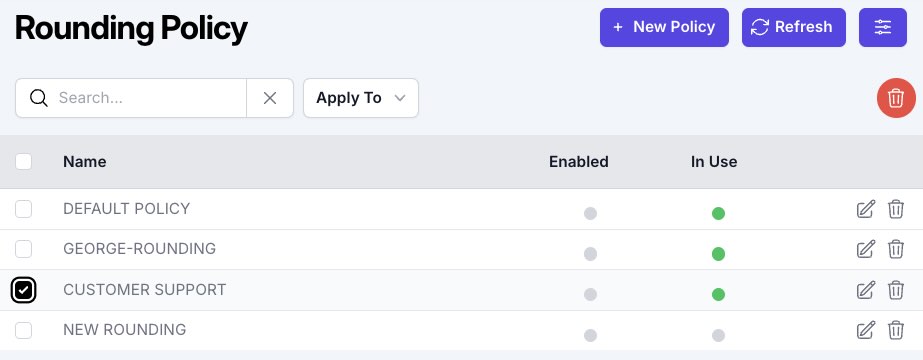
- Search Field: Located at the top, use this to filter the list of policies.
- Apply To: Used to assign a policy to specific group.
- Action Buttons (Upper-Right Corner):
- New Policy: Create a new rounding policy.
- Refresh: Reload the list of policies.
- Filter Icon: Filter policies by priority (Shift, Department, Job).
Policy Table Columns #
- Name: The policy’s name.
- Enabled: Indicates if the policy is currently enabled.
- In Use: A green circle icon shows if the policy is actively assigned.
- Edit Icon (Pencil): Click to modify the policy.
- Trash Icon: Click to delete the policy.
Create a Rounding Policy #
- Click “New Policy” in the upper-right corner.
- In the slideout menu, enter a Name for the policy.
- Enable the policy by toggling the Enable button.
- Under Type, configure one or more of the following:
- Start/End Day
- Start/End Lunch
- Start/End Break
- For each Type, select a rounding interval: 5, 10, or 15 minutes.
- Note: 15 minutes is the maximum allowed by the Department of Labor.
- Click UPDATE to save the policy.
Edit a Rounding Policy #
- Click the Edit icon (pencil) in the row of the policy you wish to change.
- A sidebar will slide out from the right. Make your changes as needed.
- Click UPDATE to save your changes.

Assign a Rounding Policy to a Group #
- Select the checkbox to the left of the policy name you want to assign.
- Click the “Apply To” button above the table.
- Choose one of the following options from the dropdown:
- Department
- Job
- Shift
- Select the specific group to assign the policy.
Note: Policies cannot be assigned to individual employees, only to groups.
Prioritizing Rounding Policies #
How to Set the Priority for Rounding Policies #
- Open the Rounding Policy Page:
Ensure you are on the Rounding Policy page. - Click the Filter Icon:
Locate the Filter Icon at the top right of the policy list. Click it to open the priority settings. - Adjust Policy Priority:
A sidebar will slide out from the right-hand side of the screen. Here, you can drag and drop policies to reorder them according to the desired priority. The policy at the top will be applied first, followed by the next, and so on. - Save Your Changes:
After setting the desired order, click the Save button to apply your changes.

Understanding Rounding #
Why is Rounding Used? #
Rounding simplifies payroll by standardizing punch times. For example, if an employee is scheduled to start at 8:00 AM but punches in at 7:56 AM or 8:03 AM, rounding adjusts the time to 8:00 AM, making calculations consistent and fair.
How Does Rounding Work? #
- Intervals: Rounding can be set to 5, 10, or 15-minute intervals.
- Direction: Punches can be rounded forward, backward, or to the nearest interval, as defined in the policy.
- Shift Rules: If Shift rules are in place, they may override punch rounding to prevent unauthorized overtime and control labor costs.
Note: 15 Minutes is the maximum time allowed by the Department of Labor.
Frequently Asked Questions #
Can I assign a policy to an individual employee? #
No. Rounding policies are designed to be non-discriminatory and can only be assigned to groups (Department, Shift, or Job).
What is the maximum rounding interval I can set? #
15 minutes, in compliance with Department of Labor regulations.
What happens if a Shift rule conflicts with a Rounding policy? #
Shift rules take precedence and may override punch rounding to enforce shift boundaries.
How do I know if a policy is in use? #
A green circle icon in the “In Use” column indicates active assignment.
Troubleshooting #
I can’t assign a policy to an employee. #
- Solution: Ensure you are selecting a group (Department, Shift, or Job), not an individual employee. Individual assignment is not supported.
The policy changes are not saving. #
- Solution: After editing, make sure to click the UPDATE button in the sidebar. If issues persist, try refreshing the page.
The policy is not being applied as expected. #
- Solution: Check if Shift rules are overriding the rounding policy. Review both the Shift and Rounding Policy settings.
I don’t see my new policy in the list. #
Solution: Click the Refresh button in the upper-right corner to reload the policy list.
