

Overview #
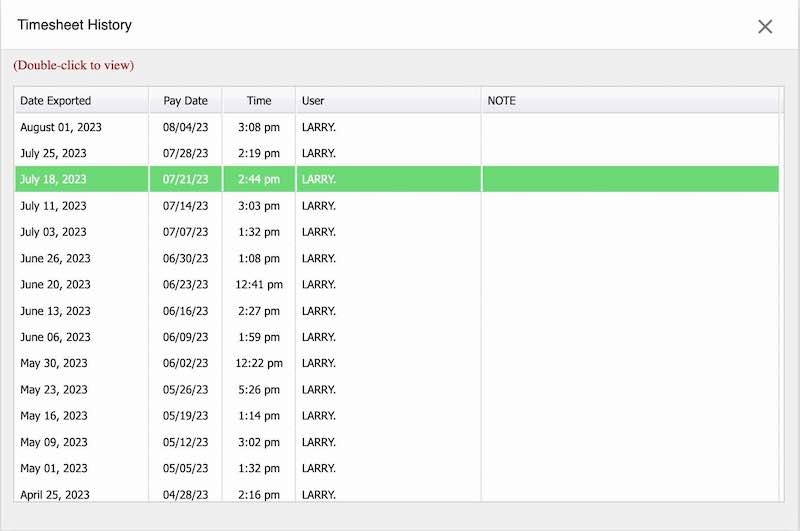
The Timesheet History page is designed to help Managers track and review all timesheets that have been exported for payroll. This page provides a clear, organized record of every pay period that has been submitted, ensuring transparency and accuracy in payroll processing.
Accessing the Timesheet History Page #
- From the main menu, navigate to Timesheets.
- Select Timesheet History.
You will be presented with a table listing all exported timesheets.
Understanding the Timesheet History Table #
The Timesheet History table displays the following columns:
- Date Exported: The date when the timesheets were submitted for payroll processing.
- Pay Date: The date employees are scheduled to be paid.
- Time: The exact time the timesheets were submitted.
- User: The name of the user (typically a Manager) who submitted the timesheets.
- Note: Any custom note added by the Manager for the payroll processor.
This layout allows for quick reference and easy tracking of payroll submissions.
Viewing Detailed Export Reports #
To view more information about a specific export:
- Double-click any row in the Timesheet History table.
- A detailed report of the selected export will open, providing in-depth information about the submission.
Key Features and Functionalities #
- Comprehensive Record Keeping: Every payroll export is logged, ensuring a complete history is always available.
- User Accountability: The submitting user is recorded for each export, supporting audit trails.
- Custom Notes: Managers can add notes for payroll processors, improving communication and reducing errors.
- Export Protection: Once timesheets are exported, the “Submit Timesheets” button is removed from the Timesheet Summary page to prevent duplicate or overlapping submissions.
Common User Questions #
Why can’t I see the “Submit Timesheets” button after exporting? #
Once timesheets have been exported for payroll processing, the “Submit Timesheets” button is automatically removed from the Timesheet Summary page for the corresponding Pay Date. This is a protection feature to prevent multiple or overlapping timesheets from being sent for the same pay period.
How do I correct an error after submitting timesheets? #
If you notice an error after submitting timesheets:
- Do not attempt to re-submit—the system will not allow it.
- Contact your payroll processor immediately to inform them of the issue. This will ensure they do not begin processing your payroll with the incorrect information.
- Reach out to ProClock support to request that the export be manually deleted.
- Once the export is deleted, the “Submit Timesheets” button will reappear, allowing you to re-submit the corrected timesheets.
Who can see the Timesheet History page? #
All users with access to the Timesheets section, typically Managers and payroll processors, can view the Timesheet History page.
Troubleshooting #
Issue: I cannot find a recent export in the Timesheet History page. #
Steps to resolve:
- Confirm that the export was completed successfully from the Timesheet Summary page.
- If the export is still missing, contact ProClock support for assistance.
