

Overview #
The Punch Management screen allows employees to view their punches, see total hours worked each day, and make necessary adjustments such as editing, adding, or deleting punches. Any changes made to punches are sent to the manager for review and approval, ensuring accuracy and accountability in time tracking.

Key Features #
- View Punches: Easily access your punch history for any selected date.
- Edit Punches: Modify existing punches to correct errors or update times.
- Add Punches: Manually add missed punches for accurate time tracking.
- Delete Punches: Remove incorrect or duplicate punches.
- Manager Review: All changes are sent to your manager for approval.
Accessing Punch Management #
From Your Device #
- Tap the Menu icon (☰) in the top left corner.
- Select Punch Management from the menu options.
From a Kiosk #
- First, identify yourself by signing in:
- Tap the Enter Punch button to sign in with Face Recognition.
- Tap the Menu icon (☰) in the top left corner and select Sign In to enter your credentials manually.
- Tap the Menu icon (☰) in the top left corner and select Punch Management.
Once the kiosk has identified you, you may press the Menu icon (☰) again to receive more options specific to you.
Viewing Your Punches #
- Select the desired Pay Date and Year to filter your results.
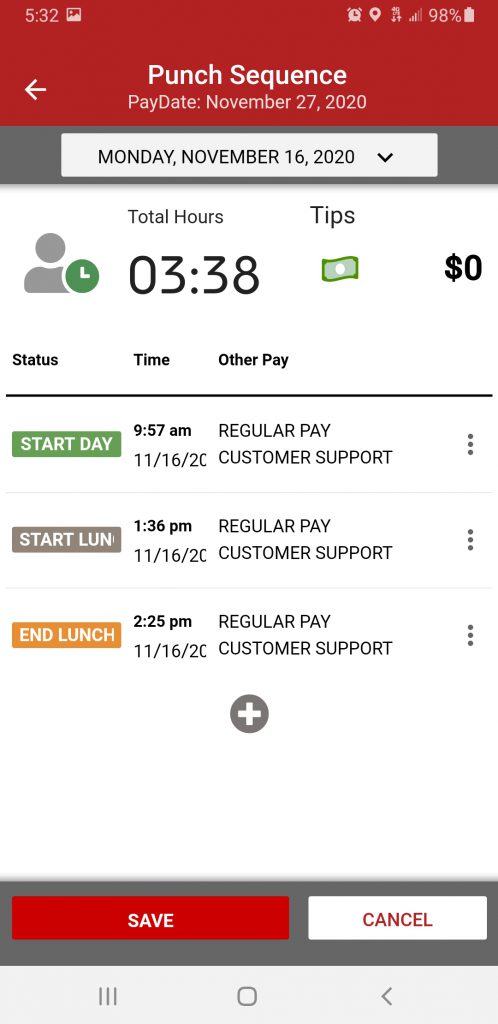
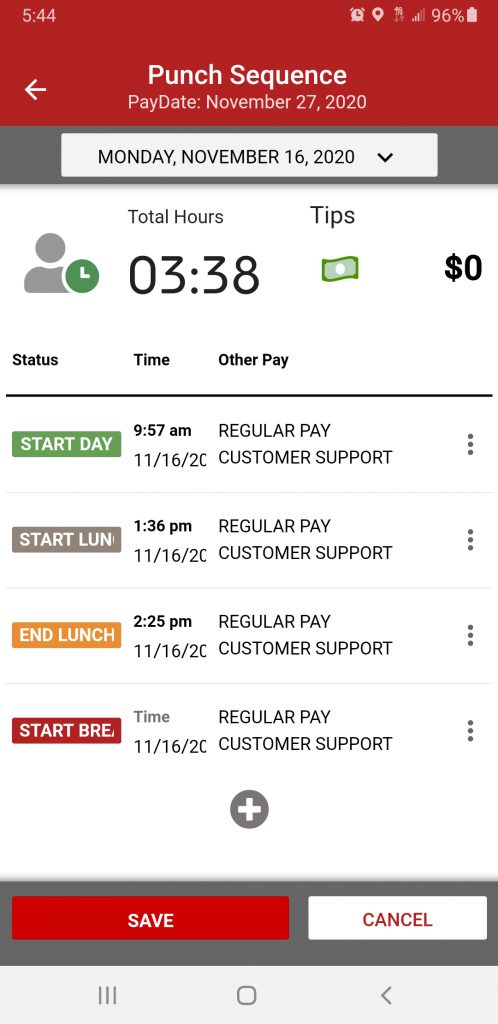
- Your punches will be displayed below, including:
- Start Day / End Day
- Start Break / End Break (if applicable)
- Start Lunch / End Lunch (if applicable)
- Total hours worked
Editing an Existing Punch #
- In the Punch Management screen, locate the punch you want to edit.
- Tap the punch to view the Punch Sequence screen.
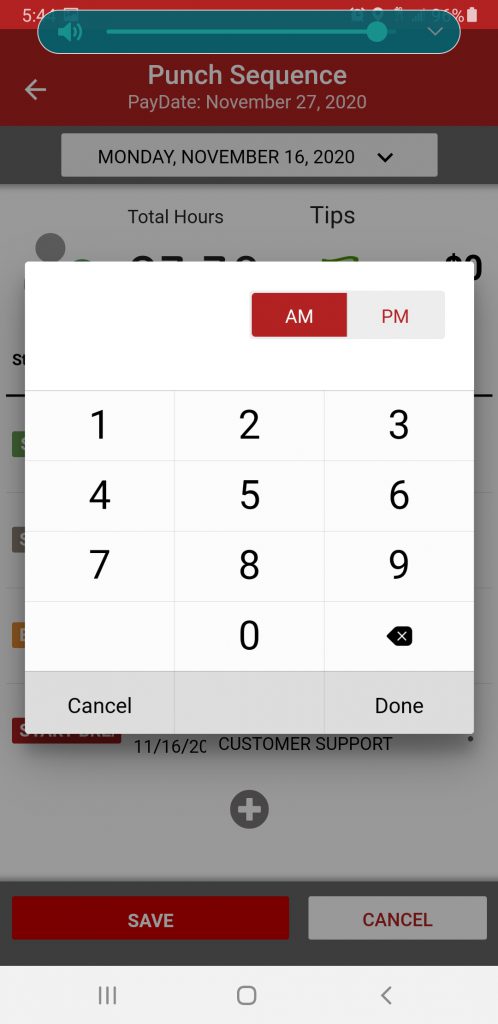
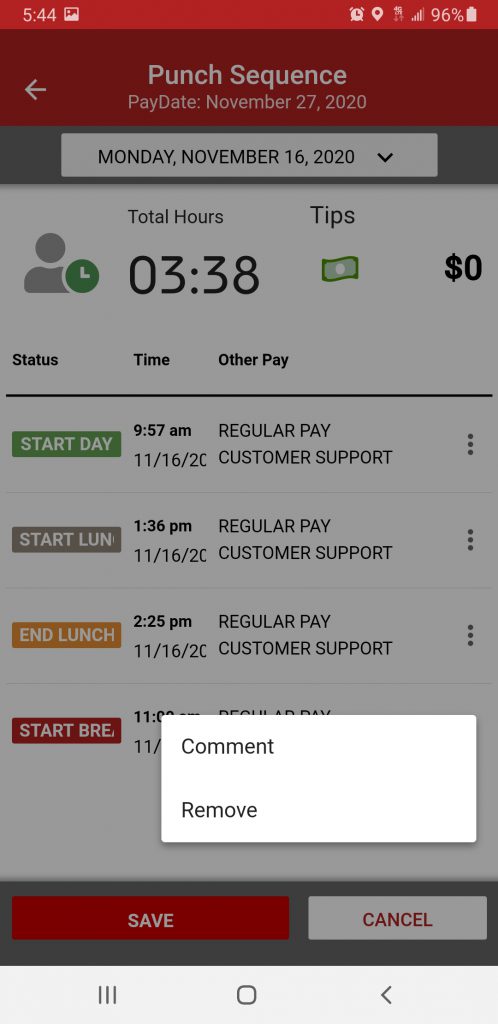
- Tap a punch to edit the necessary fields:
- Punch Type: Adjust the type of punch (Start Day, End Day, etc.)
- Time: Modify the time of a punch.
- Date: Modify the date of a punch.
- Pay Rate: Add or change the Pay Rate assigned to the punch.
- Job: Add or change the Job assigned to the punch.
- Comment: Add or update notes for context.
- Comment: Delete the punch.
- Tap Save to apply your changes.
Note: Some organizations may require manager approval for edited punches. If so, your changes will be submitted for review.
Adding a New Punch #
- In the Punch Management screen, tap the Add Punch button (➕).
- Enter the required details:
- Date
- Clock In and Clock Out times
- Notes (optional)
- Tap Save to add the new punch.
Deleting a Punch #
- Find the punch you wish to delete in the Punch Sequence screen.
- Tap the Actions icon (⋮) next to the punch entry.
- Select Remove.
- Confirm the deletion when prompted.
Warning: Deleting a punch is permanent and cannot be undone.
Common User Questions #
Why can’t I edit my punches? #
- Possible Reasons:
- Your organization has restricted editing permissions.
- The punch is locked for payroll processing.
What if I made a mistake and can’t edit or delete a punch? #
- Contact your manager or HR administrator for assistance. They may have the necessary permissions to make changes on your behalf.
Troubleshooting #
I can’t see my punches for today. #
- Check your date selection: Ensure you have selected the correct date in the calendar.
- Refresh the app: Pull down on the screen to refresh your punch list.
Edits are not saving. #
- Check required fields: Ensure all mandatory fields are filled out.
- App update: Make sure you are using the latest version of the ProClock app.
- Permissions: Confirm you have the necessary permissions to edit punches.
The app is not responding. #
- Restart the app: Close and reopen the ProClock app.
- Restart your device: Power off and restart your mobile device.
Reinstall the app: Uninstall and reinstall the ProClock app if issues persist.
