

Overview #
The Pay Policies page allows administrators to define, manage, and apply rules for calculating employee pay, including regular hours, overtime, and special pay rates. This system supports multiple pay policies, enabling organizations to tailor pay calculations for different groups of employees as needed.
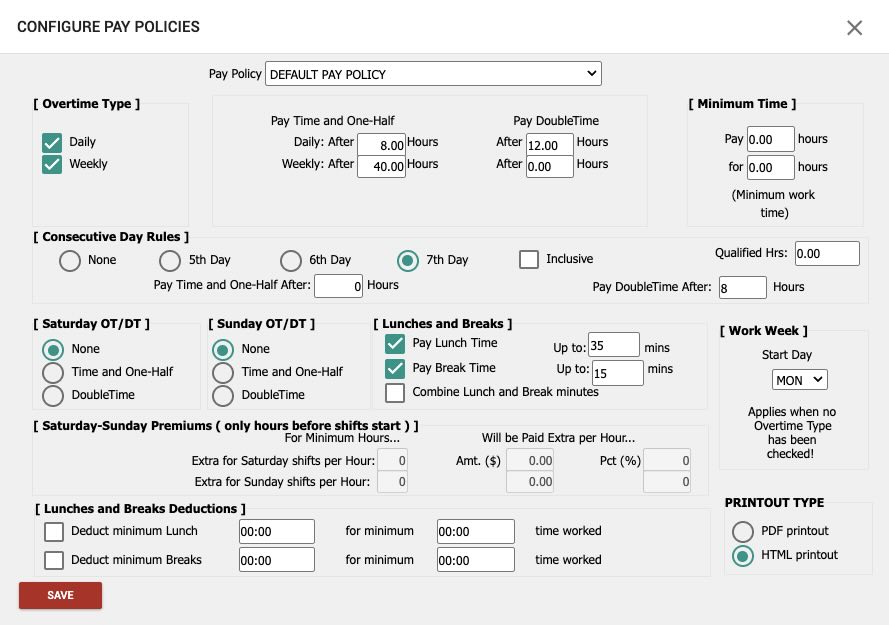
Accessing the Pay Policies Page #
- Log in to your administrator account.
- Navigate to the Pay Policies section from the main menu.
- The Pay Policies page will display a list of existing policies and options to add or modify them.
Key Features and Fields #
Adding a New Pay Policy #
- Click the ADD button.
- Enter the new Pay Policy name in the provided field.
- Click the APPLY button to save the new policy.
Changing an Existing Pay Policy #
- Select the desired Pay Policy from the dropdown list.
- Edit the Pay Policy name as needed.
- Click the APPLY button to save your changes.
Pay Policies Configuration #
The Pay Policies screen defines how employee hours are calculated for Regular, Overtime, and other pay rates. Multiple policies can be created and assigned to different employees or groups.
Overtime Type #
Select one or more overtime accrual options:
- Daily: Overtime is accrued after exceeding a set number of hours in a single day.
- Weekly: Overtime is accrued after exceeding a set number of hours in a week.
- Bi-Weekly: Overtime is accrued after exceeding a set number of hours in a 14-day period.
- Semi-Monthly: Overtime is accrued after exceeding a set number of hours in a 15-day period.
How to Configure:
- Check the relevant boxes for the overtime types you wish to apply.
- Enter the threshold number of hours for each selected period.
Example:If both Daily (8 hours) and Weekly (40 hours) are selected, an employee working 10 hours on Monday and 8 hours on Tuesday (total 18 hours) would receive 16 hours regular pay and 2 hours overtime.
Consecutive Day Rules #
Employees may earn overtime if they work 5, 6, or 7 consecutive days and meet a minimum hours requirement. Configure the number of consecutive days and minimum hours as per company policy.
Saturday or Sunday Premium #
Employees can earn time-and-a-half or double-time pay for working on Saturdays or Sundays, depending on company rules. Set the applicable premium rates and conditions.
Pay Lunch Time #
Define if employees are entitled to paid lunch breaks for a specified number of minutes. Any lunch time taken beyond the allowed period will be deducted from total hours.
Pay Break Time #
Define if employees are entitled to paid breaks for a specified number of minutes. Any break time taken beyond the allowed period will be deducted from total hours.
Minimum Time #
Set a minimum number of hours to be paid if an employee works at least a specified minimum time.Example: Pay a minimum of 4 hours if the employee works at least 1 hour in a day.
Automatic Lunches and Breaks #
Automate the deduction of lunch and break periods, regardless of whether employees punch in/out for these periods.
Deduct Minimum Lunch #
- Check this box to enable automatic deduction.
- Enter the duration of the Lunch to deduct.
- Set the minimum time the employee must work before this rule is applied.
Deduct Minimum Breaks #
- Check this box to enable automatic deduction.
- Enter the duration of the Break to deduct.
- Set the minimum time the employee must work before this rule is applied.
Common User Questions #
Can I assign different pay policies to different employees?
Yes, you can create multiple pay policies and assign them to different employees or groups as needed.
What happens if I select multiple overtime types?
Overtime will be accrued if any of the selected conditions are met.
How do I ensure lunch and break times are deducted automatically?
Use the “Lunches and Breaks Deductions” section to configure automatic deductions.
How do I edit an existing pay policy?
Select the policy from the dropdown, make your changes, and click SAVE.
Troubleshooting #
Changes to a pay policy are not saving:
- Ensure you have clicked the SAVE button after making changes.
- Check your user permissions; only administrators can edit pay policies.
- Refresh the page and try again.
Overtime is not being calculated as expected:
- Verify that the correct overtime types and thresholds are selected.
- Check for conflicting rules (e.g., both daily and weekly overtime).
- Review employee assignments to ensure the correct policy is applied.
Automatic lunch/break deductions are not working:
- Confirm that the relevant checkboxes are selected.
- Ensure the minimum hours and minutes are set correctly.
- Save changes by clicking SAVE.
Best Practices #
Document any custom rules or exceptions for future reference.
Review pay policies regularly to ensure compliance with labor laws.
Test new or modified policies with a small group before company-wide rollout.
