

Overview #
The ProClock mobile app is designed to help employees easily manage their work hours by allowing them to create, edit, and review time punches directly from their mobile devices. This guide explains how to create a punch using the ProClock mobile app, addresses common questions, and provides troubleshooting steps for typical issues.
Key Features #
- Easy Punch Creation: Quickly clock in or out with just a few taps.
- Real-Time Updates: Punches are instantly synced with your ProClock account.
- Punch History: View and manage your previous punches.
- Location Tracking: Optionally records your location (if enabled by your employer).
Step-by-Step: Creating a Punch #
1. Access the Punch Screen #
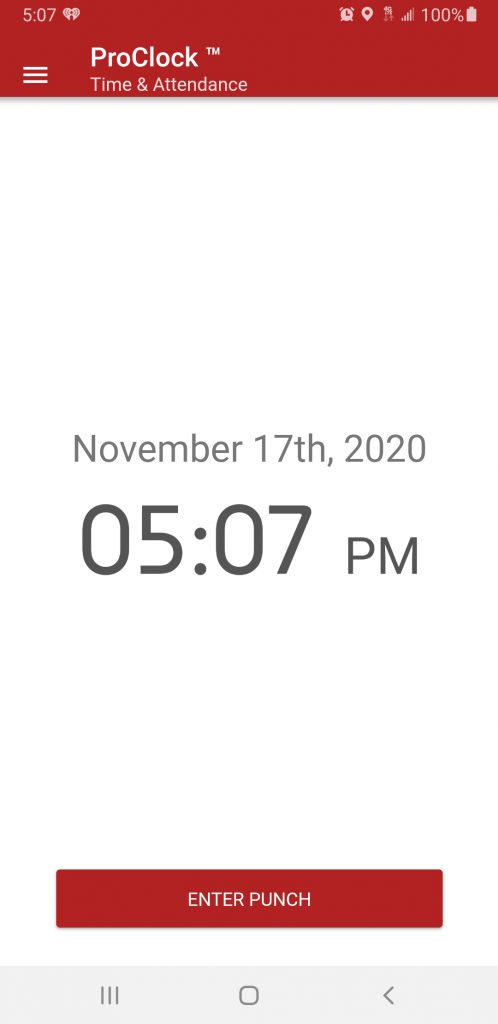
- Tap the Enter Punch button (located at the bottom of the screen).
- The camera will automatically appear and take your picture for identification.
- Images captured for identification purposes are never saved. To save images, you must add them manually on the Face Manager page.
2. Create a New Punch #
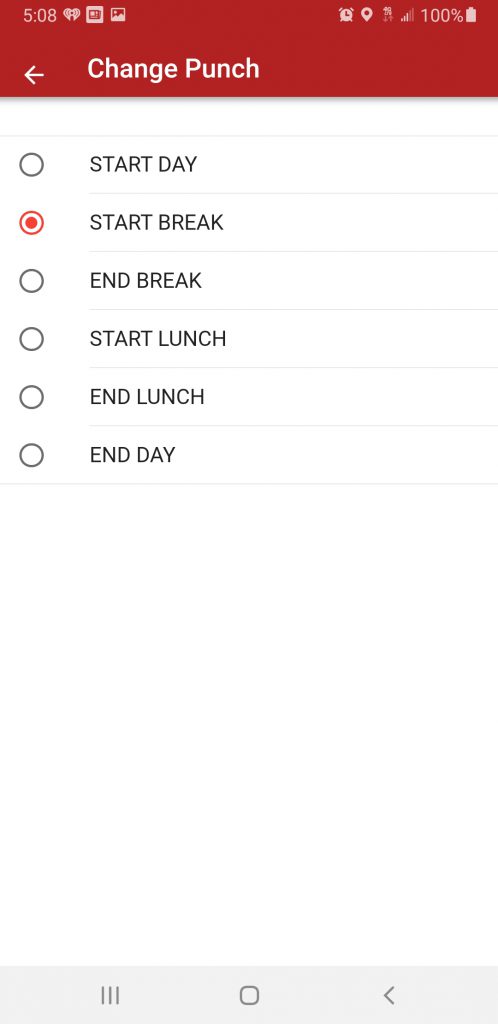
ProClock presents your punch options in a sequence according to your work schedule that is pre-defined by a manager.
- On the Punch screen, you will be presented with your next punch according to your work day schedule.
- Example 1: If you are just starting your work day, you will be presented with the option “Start Day”
- Example 2: If you have clocked out for lunch and are returning, you will be presented with the option “End Lunch”.
- If the punch that is presented to you is not correct, you may tap the Change Punch button to select the correct punch.
3. Review Punch Details #
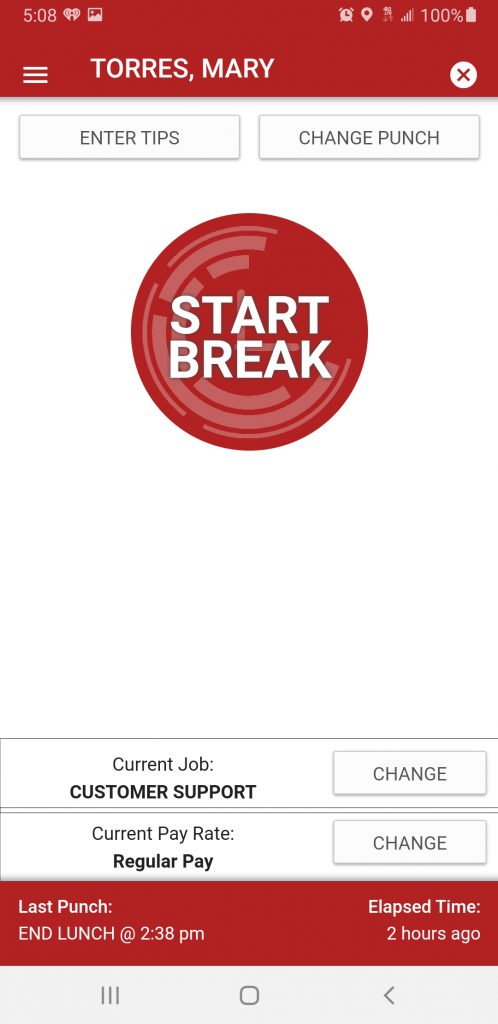
Review the punch details (Punch Type, Job, Pay Rate). #
- Before confirming your punch, you have an opportunity to add any Tips and the option to change your Job, Department, and Pay Rate.
- Tap the Punch Button to enter your punch.
- After your punch is entered, ProClock will return to the Punch Screen, awaiting the next interaction.
4. Confirm Your Punch #
- Tap the Punch Button to finalize your punch.
- A confirmation message will appear, and your punch will be recorded.
Frequently Asked Questions (FAQs) #
Q: What if I forget to punch in or out? #
A: If you forget to create a punch, contact your manager or supervisor. Some organizations allow you to request a punch correction directly from the app.
Q: Can I edit or delete a punch? #
A: Editing or deleting punches depends on your organization’s settings. If allowed, you can tap on a punch in your history to request an edit or deletion.
Q: Why can’t I see the Punch button? #
A: Ensure you are logged in with the correct account and have the necessary permissions. If the issue persists, try restarting the app or contact your administrator.
Q: Does the app track my location when I punch? #
A: Location tracking is only enabled if your employer requires it. You will be prompted to allow location access if this feature is active.
Troubleshooting #
Issue: Punch Not Syncing #
- Check for Offline Mode: If you punched while offline, the punch will sync once you reconnect to the internet.
Issue: Incorrect Time or Location #
Verify Device Settings: Ensure your device’s date, time, and location settings are correct.
