

Overview #
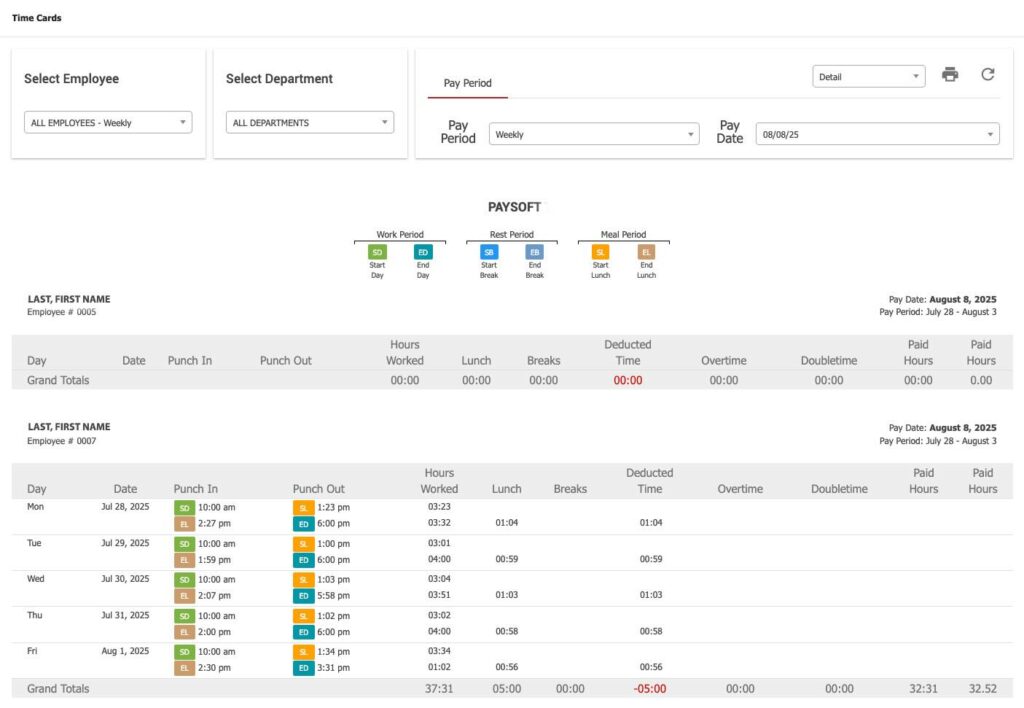
The Time Cards page is a reporting tool designed to help Managers and Employees view detailed records of work hours, including clock-in and clock-out times, total hours worked, and pay period summaries.
The Time Cards page is accessible from the main menu by navigating to REPORTS → Time Cards.
Note: This page is strictly for viewing and reporting purposes—editing time punches must be done on the Punch Management page.
Key Features #
- Comprehensive Reporting: View detailed, summary, or total-only reports of employee work hours.
- Flexible Filtering: Filter reports by employee, department, pay period, or pay date.
- Multiple Pay Schedules: Supports weekly, bi-weekly, semi-monthly, and monthly pay periods.
- Printable Reports: Easily print or save reports as PDF.
- Real-Time Data: Refresh the report to view the latest data.
Using the Filter Module #
At the top of the Time Cards page, you’ll find the Filter Module. This section allows you to customize the report view according to your needs.
Filter Options #
1. Select Employee #
- Purpose: Filter the report by a specific employee.
- How to Use: Click the dropdown to select or type in the employee’s name.
2. Select Department #
- Purpose: Filter the report by department.
- How to Use: Click the dropdown and choose the relevant department.
3. Pay Period #
- Purpose: Filter by Pay Period or Pay Date.
- Options:
- Pay Period: Useful if your company has multiple pay schedules (e.g., weekly for staff, monthly for managers). Select between Weekly, Bi-Weekly, Semi-Monthly, and Monthly.
- Pay Date: Filter the report by a specific pay date.
4. Detail (Dropdown Menu) #
- Purpose: Choose the level of detail displayed in the report.
- Options:
- Detail: Shows every clock-in and clock-out for each workday, including time worked between punches.
- Summary: Displays total hours for each workday in a single row.
- Totals Only: Shows only the total hours worked per Pay Period.
5. Print Icon #
- Purpose: Print the report or save it as a PDF.
- How to Use: Click the print icon and follow your browser’s print or save dialog.
6. Refresh Icon #
- Purpose: Refresh the report to display the most current data.
- How to Use: Click the refresh icon.
Common User Questions #
Q: Can I edit time punches from the Time Cards page? #
A: No, the Time Cards page is for viewing only. To edit punches, go to Main Menu → SETUP → Punch Management.
Q: How do I see only the total hours worked for a Pay Period? #
A: Use the Detail dropdown menu at the top of the page and select Totals Only.
Q: How can I print or save the report as a PDF? #
A: Click the Print Icon at the top of the page. Use your browser’s print dialog to print or save as PDF.
Q: Why can’t I see the latest punches? #
A: Check that you have selected the correct Pay Date from the Filter Module above.
Troubleshooting #
Issue: The report is not showing the expected employee or department. #
Solution:
- Check that the correct employee or department is selected in the filter module.
- Clear all filters and reapply them as needed.
- Click the Refresh Icon to reload the data.
Issue: The report is not updating after making changes in Punch Management. #
Solution:
- Ensure you have saved all changes in Punch Management.
- Return to the Time Cards page and click the Refresh Icon.
Issue: Unable to print or save the report. #
Solution:
- Ensure your browser’s pop-up blocker is not preventing the print dialog.
- Try using a different browser or updating your current browser.
- If the issue persists, contact your IT support team.
