

Overview #
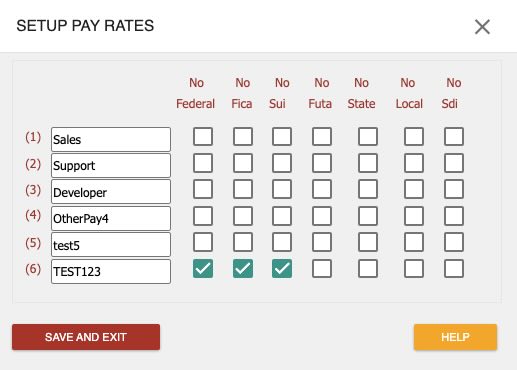
The Pay Rates page allows Managers to define and manage additional pay rates beyond the standard Regular Hours pay rate. This feature is designed to accommodate various compensation scenarios such as travel pay, bonuses, or custom overtime rates, as determined by your company’s payroll policies. The page supports up to six (6) user-defined pay rates, each with customizable descriptions and tax exclusion options.
Key Features #
- Up to 6 Additional Pay Rates: Define and label up to six extra pay rates in addition to the default Regular Hours rate.
- Custom Descriptions: Assign meaningful names to each pay rate (e.g., “Travel Pay”, “Bonus”, “Overtime for Rate 2”).
- Tax Exclusion Options: For each pay rate, selectively exclude specific taxes (Federal, FICA, SUI, FUTA, State, Local, SDI) as required by your company’s policies.
Fields #
Pay Rate Number (1–6) #
- Purpose: Identifies each additional pay rate slot.
- Usage: Use these slots to define different types of pay (e.g., Rate 1 for Travel Pay, Rate 2 for Bonus, etc.).
Description Field #
- Purpose: Allows you to enter a custom name or description for each pay rate.
- Usage: Click into the field next to each rate number and type a descriptive label. For example:
- Rate 1: “Travel Pay”
- Rate 2: “Bonus”
- Rate 3: “Overtime for Rate 2”
- Tip: Use clear, specific names to help payroll staff and employees understand the purpose of each rate.
Tax Exclusion Checkboxes #
For each pay rate, you can check boxes to exclude the following taxes:
- No Federal: Excludes Federal Income Tax withholding.
- No FICA: Excludes Social Security and Medicare taxes.
- No SUI: Excludes State Unemployment Insurance tax.
- No FUTA: Excludes Federal Unemployment Tax Act tax.
- No State: Excludes State Income Tax withholding.
- No Local: Excludes Local Income Tax withholding.
- No SDI: Excludes State Disability Insurance tax.
Usage:Check the box next to any tax you wish to exclude for the specific pay rate. Leave unchecked to include the tax.
Common User Questions #
1. Where else do I use these Pay Rates? #
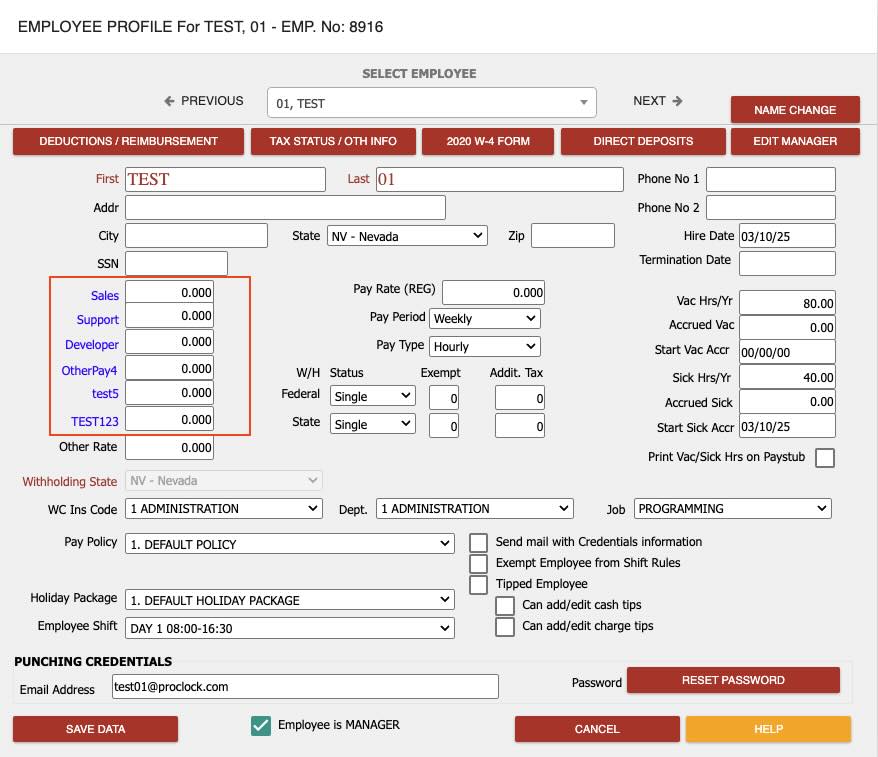
You can find these Pay Rates on the Employee Profile page.
2. Do I have to use all six pay rates? #
No. You can use as many or as few as your company requires. Unused rates can be left blank.
3. Can I change the description of a pay rate later? #
Yes. You can update the description at any time by editing the text in the description field.
4. What happens if I exclude a tax by mistake? #
If a tax is excluded in error, simply uncheck the box to include the tax again. Payroll calculations will update accordingly.
5. Can I use the same description for multiple pay rates? #
While technically possible, it is recommended to use unique descriptions for clarity and accurate reporting.
6. How do I know which taxes to exclude? #
Consult your company’s payroll policy or a tax professional to determine which taxes should be excluded for each pay rate.
Troubleshooting #
Issue: Pay Rate Not Appearing on Payroll Reports #
Steps to Resolve:
- Ensure the pay rate has a description entered.
- Verify that the pay rate is assigned to employees in their profiles.
- Check that the pay rate is not disabled or left blank.
- Save changes and refresh the payroll report.
Issue: Incorrect Tax Withholding on a Pay Rate #
Steps to Resolve:
- Review the tax exclusion checkboxes for the affected pay rate.
- Ensure only the intended taxes are excluded.
- Save changes and reprocess payroll if necessary.
Issue: Unable to Edit Pay Rate Description #
Steps to Resolve:
- Confirm you have the necessary administrative permissions.
- If the field is locked, contact your system administrator.
- Refresh the page or log out and back in to resolve temporary glitches.
Best Practices #
- Review Regularly: Periodically review pay rate descriptions and tax settings to ensure compliance with company policies and tax regulations.
- Document Changes: Keep a record of any changes made to pay rates or tax exclusions for audit purposes.
- Consult Experts: When in doubt about tax exclusions, consult with your payroll provider or a tax professional.
