

Overview #
The ProClock Setup page is the central location for configuring your company’s Time & Attendance settings. This page allows administrators to control how employees interact with the ProClock system, whether through the mobile app or a kiosk device. With ProClock Setup, you can tailor punch options, enforce security measures, manage Pay Rates and Jobs, and set up policies for breaks, lunches, and timesheet approvals. This guide will walk you through each setting, answer common questions, and provide troubleshooting steps to ensure a smooth setup experience.
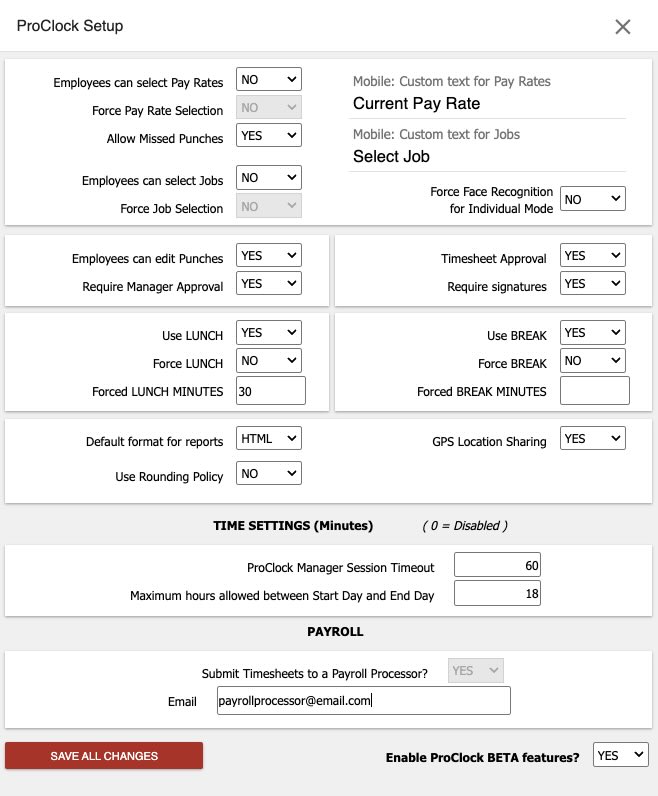
Key Features and Settings #
1. Pay Rates #
- Employees can select Pay Rates (YES/NO):
Enable this to allow employees to choose from available pay rates when clocking in or out. - Force Pay Rate Selection (YES/NO):
Require employees to select a pay rate before completing a punch. - Mobile: Custom text for Pay Rates:
Customize the instructional text shown to employees when selecting pay rates in the mobile app.
Tip: Unless you have a specific use case, it’s recommended to keep the default text.
2. Jobs #
- Employees can select Jobs (YES/NO):
Enable this to allow employees to select a job or task when punching in or out. - Force Job Selection (YES/NO):
Require employees to select a job before completing a punch. - Mobile: Custom text for Jobs:
Customize the instructional text shown to employees when selecting jobs in the mobile app.
3. Missed Punches #
- Allow Missed Punches (YES/NO):
- YES: Employees can continue their punch sequence even if they miss a punch.
- NO: Employees must have a manager correct the missed punch before proceeding.
Manager Tip: Disabling missed punches can increase accountability but may require more manager intervention.
4. Face Recognition #
- Force Face Recognition for Individual Mode (YES/NO):
By default, face recognition is not required on personal devices. Enable this for added security if desired.
5. Punch Editing #
- Employees can edit Punches (YES/NO):
Allow employees to access the Punch Management page to edit their own punches. - Require Manager Approval (YES/NO):
- YES: Manager must approve any edits before they are applied.
- NO: Edits are saved automatically without approval.
6. Timesheet Approval #
- Timesheet Approval (YES/NO):
Enable this to allow managers to approve timesheets and to make the Timesheets page available in the mobile app. - Require signatures (YES/NO):
Require employees to sign their timesheet upon approval, using a finger or stylus.
7. Lunch and Break Settings #
Lunch #
- Use LUNCH (YES/NO):
Enable “Start Lunch” and “End Lunch” options in the punch sequence. - Force LUNCH (YES/NO):
Require employees to take a minimum lunch break. - Forced LUNCH MINUTES:
Set the minimum number of minutes for a lunch break.
Break #
- Use BREAK (YES/NO):
Enable “Start Break” and “End Break” options in the punch sequence. - Force BREAK (YES/NO):
Require employees to take a minimum break. - Forced BREAK MINUTES:Set the minimum number of minutes for a break.
8. Reporting #
- Default format for reports:
Choose between PDF or HTML as the default export format for reports.
9. Rounding Policy #
- Use Rounding Policy (YES/NO):
Enable punch rounding. Configure specific policies under SETUP → Rounding Policy.
10. GPS Location Sharing #
- GPS Location Sharing (YES/NO):
- YES: Records GPS location for each punch (green GPS icon).
- NO: Does not record GPS location (red GPS icon).
11. Time Settings #
- ProClock Manager Session Timeout:
Set the number of minutes before automatic sign-out due to inactivity. Enter 0 to disable. - Maximum hours allowed between Start Day and End Day:
Set the maximum allowed work duration (in minutes) before the punch sequence resets.
Example: If set to 600 minutes (10 hours), an employee who starts at 8:00 am cannot end their day after 6:00 pm without manager assistance.
12. Payroll Integration #
- Submit Timesheets to a Payroll Processor:
Enable to allow timesheet exports for payroll processing. - Email:Enter the email address to receive notifications when timesheets are submitted for payroll.
Common User Questions #
Q: What happens if I disable “Allow Missed Punches”?
A: Employees must contact a manager to correct any missed punches before they can continue clocking in or out.
Q: Can I require employees to select both a Job and a Pay Rate?
A: Yes, enable both “Force Job Selection” and “Force Pay Rate Selection” to require these choices.
Q: How do I customize the text for Pay Rates or Jobs in the mobile app?
A: Enter your preferred text in the “Mobile: Custom text for Pay Rates” or “Mobile: Custom text for Jobs” fields.
Q: What does the GPS icon mean in Punch Management?
A: A green icon means GPS location was recorded; a red icon means it was not.
Q: How do I prevent employees from working excessive hours or forgetting to clock out?
A: Set the “Maximum hours allowed between Start Day and End Day” to automatically reset the punch sequence after a set duration.
Troubleshooting #
Issue: Employees Cannot Punch In After a Missed Punch #
- Check if “Allow Missed Punches” is set to NO.
- If so, a manager must correct the missed punch before the employee can continue.
- To allow employees to continue without manager intervention, set “Allow Missed Punches” to YES.
Issue: Employees Not Seeing Job or Pay Rate Options #
- Ensure “Employees can select Jobs” and/or “Employees can select Pay Rates” are set to YES.
- If “Force Job Selection” or “Force Pay Rate Selection” is enabled, ensure jobs/pay rates are properly configured in the system.
Issue: GPS Location Not Recorded #
- Confirm “GPS Location Sharing” is set to YES.
- Ensure the employee’s device has location services enabled and permissions granted for the ProClock app.
Issue: Employees Unable to Edit Punches #
- Verify “Employees can edit Punches” is set to YES.
- If “Require Manager Approval” is enabled, ensure managers are reviewing and approving edits.
Issue: Timesheet Approval Not Working #
- Confirm “Timesheet Approval” is set to YES.
- If “Require signatures” is enabled, ensure employees are prompted to sign upon approval.
