

Overview #
The mobile app is designed to streamline employee time tracking and attendance management. Employees can securely sign in, record their work hours, and utilize advanced features such as managing Tips and approving timesheets. This guide explains the step-by-step process for employees to sign in to the mobile app, from initial setup to accessing the Home Screen.
Prerequisites #
Before you can sign in to the mobile app, ensure the following:
- Employee Profile Created: Your Manager must create your employee profile with a valid email address.
- Password Setup: You must receive a password reset link via email and set your password.
- Mobile App Installed: Download and install the app on your personal device.
Step-by-Step Sign In Process #
1. Employee Profile Creation #
- Your Manager will create your employee profile using your valid email address.
- You will receive an email with a password reset link.
2. Set Your Password #
- Open the email from your Manager.
- Click the password reset link.
- Follow the prompts to set your personal password.
3. Download the Mobile App #
For iOS (Apple) Devices: Click here to download from Apple App Store

For Android Devices: Click here to download from Google Play Store

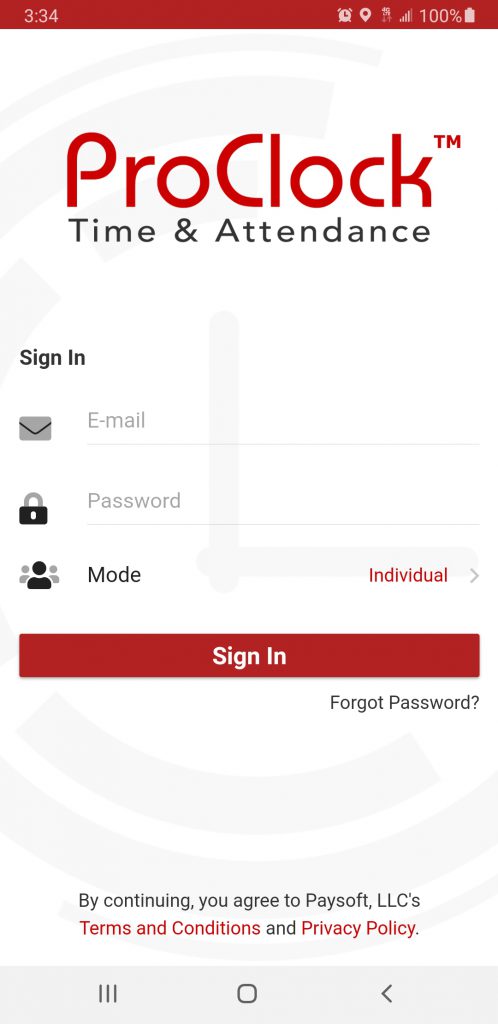
4. Sign In to the App #
- Open the mobile app on your device.
- Enter your email address and the password you created.
- Ensure the Sign In Mode is set to Individual (default setting).
- Tap Sign In.
5. Face Recognition Onboarding #
- On your first sign in, you will be prompted to continue to Face Manager.
- Follow the on-screen instructions to add your images for Face Recognition.
- This step enhances security and is required for future sign ins.
6. Access the Home Screen #
- After completing Face Recognition setup, you will be forwarded to the Home Screen.
- Here, you will see the Punch Button to clock in and out as needed.
Frequently Asked Questions (FAQs) #
Q: I did not receive the password reset email. What should I do?
A: Check your spam or junk folder. If you still cannot find the email, contact your Manager to resend the password reset link.
Q: Can I use a different email address to sign in?
A: No. You must use the email address that your Manager used to create your employee profile.
Q: What if I forget my password?
A: Use the “Forgot Password?” link on the sign in screen to request a new password reset email.
Troubleshooting #
Issue: Unable to Sign In #
- Check Email and Password:
- Ensure you are entering the correct email address and password.
- Passwords are case-sensitive.
- Reset Password:
- Tap “Forgot Password?” on the sign in screen.
- Follow the instructions in the password reset email.
- App Version:
- Make sure you have the latest version of the app installed from the official app store.
- Internet Connection:
- Ensure your device is connected to the internet.
- Contact Manager:
- If you continue to experience issues, contact your Manager to verify your employee profile and email address.
Issue: Face Recognition Setup Fails #
Close and reopen the app, then try the setup again.
Good Lighting:
Ensure you are in a well-lit area when adding your images.
Follow Prompts:
Carefully follow the on-screen instructions for capturing your face.
Restart App:
See the image below:
