

Overview #
The Punch Management page provides a comprehensive overview of an employee’s punch history, displaying a timeline of all recorded punches. Managers can conveniently edit punches made by employees, as well as verify the location of each punch.
Filter Module #
At the top of the page, you will find a filter that enables you to tailor the list of employees and their punches beneath it according to your preferences.:
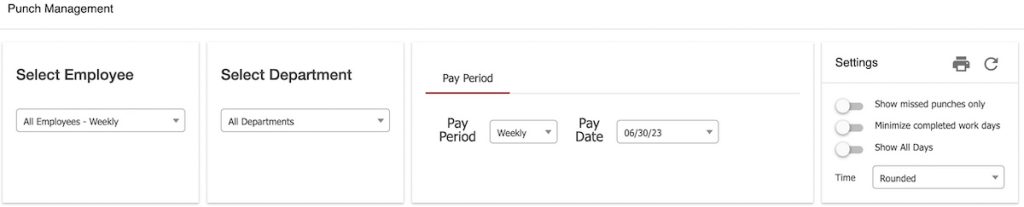
- Select Employee: Filter the list below by employee
- Select Department: Filter the list below by department
- Pay Period: Automatically set to the upcoming Pay Date
- Pay Period: Select between Weekly, Bi-Weekly, Semi-Monthly, and Monthly.
- Pay Date: Filter the list below by Pay Date.
- Settings:
- Show Missed Punches Only: Hides completed Punch Sequences in order to highlight Missed Punches.
- Minimize Completed Work Days: Completed work days are consolidated and summarized into 1 row.
- Show All Days: Displays work days without any punch data.
- Time Display Options (if a Rounding Policy is enabled)
- Rounded: Shows the time of a punch after the Rounding Policy is applied.
- Original: Shows the real time of a punch without any Rounding Policy applied.
- Both: Shows both the Rounded and Original times of each punch.
- Print: Print the Timesheet Summary to PDF or send to your printer.
- Refresh: Refreshes all data on the page. This is useful after edits are made to punches.
Columns #
Day, Date and Time #
These columns display the exact date and time of each punch.
Department #
If the employer enables departments, the department name will be in this column.
Job #
If the employer enables Jobs, the job name will be in this column.
Pay Rate #
If the employer enables multiple Pay Rates, they will be shown in this column.
Status #
Punch Types: #
- SD = Start Day
- ED = End Day
- SL = Start Lunch
- EL = End Lunch
- SB = Start Break
- EB = End break
Actions #
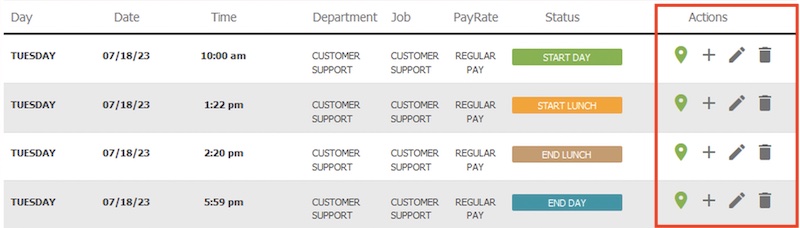
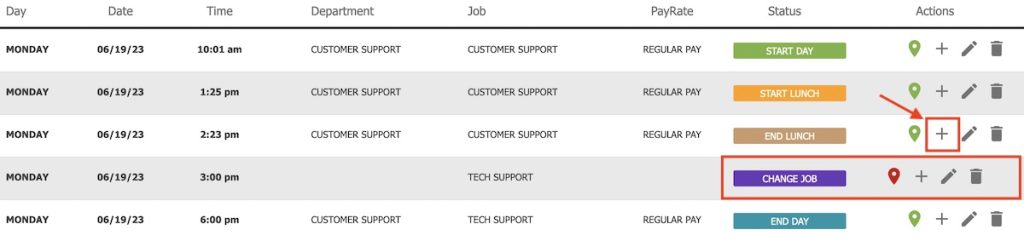
To carry out the actions listed, simply click on the icons located in this column.
To delete a punch, simply click on the trash can icon. A confirmation prompt will appear, asking if you are sure you want to delete the entry. If you decide against deletion, select the “Cancel” option. If you wish to proceed with the deletion, click on “Yes.”
To edit a punch, select the pencil icon. This action will open the punch editing screen, allowing you to make the necessary adjustments.Please note that the system requires a comment prior to saving any modifications. This practice is beneficial as it provides a record of the rationale behind the edits, which can be useful if an employee questions the accuracy of their punches.
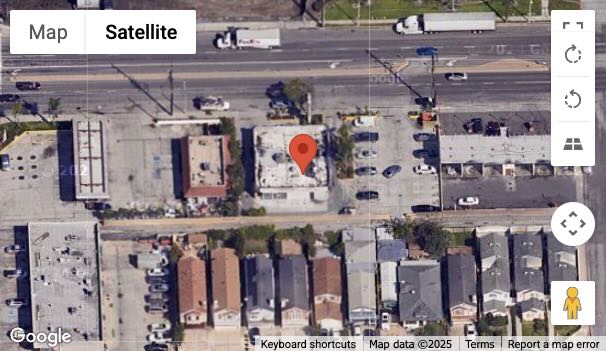
To check an employee’s location at the time of their clock-in, simply click on the GPS location icon. A green GPS icon signifies that the location data is accessible. Conversely, a red GPS icon indicates that the location data is unavailable. This situation usually arises when a Manager manually inputs a punch to rectify a missed entry.
Missed Punches #
The accuracy and completeness of these punches are crucial for ProClock to accurately calculate the total hours worked.
Missed punches will be highlighted in red to help Managers visually identify and give them the ability to correct them so that ProClock can accurately determine the total hours worked.

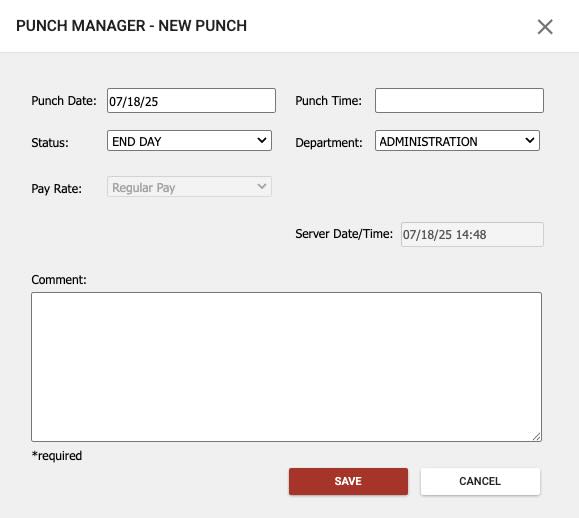
To fix a Missed Punch, click the ADD PUNCH button.
Reviewing Punches #
Use the icons in the Actions column to:
- View GPS Location (pin icon)
- Add a new punch (plus icon)
- Edit a punch (pencil icon)
- Delete a punch (trash can icon)
GPS Location #
- Green icon: GPS data available
- Red icon: GPS data unavailable
- Click the green icon to view the punch location in Google Maps
Adding Punches, Jobs, or Pay Rates #
Add Punch #
- Click the plus icon
- Enter punch details
- Include a mandatory note for record-keeping

Add Job or Pay Rate #
- Select ‘Add Job’ or ‘Add Pay Rate’ from the options
- Enter relevant details
- Note: This creates a new row in the timeline
Editing Punches #
- Click the edit icon in the Actions column
- Modify
- Punch Date
- Punch Time (24-hour format)
- Status
- Department
- Job
- Pay Rate
- Comment (required)

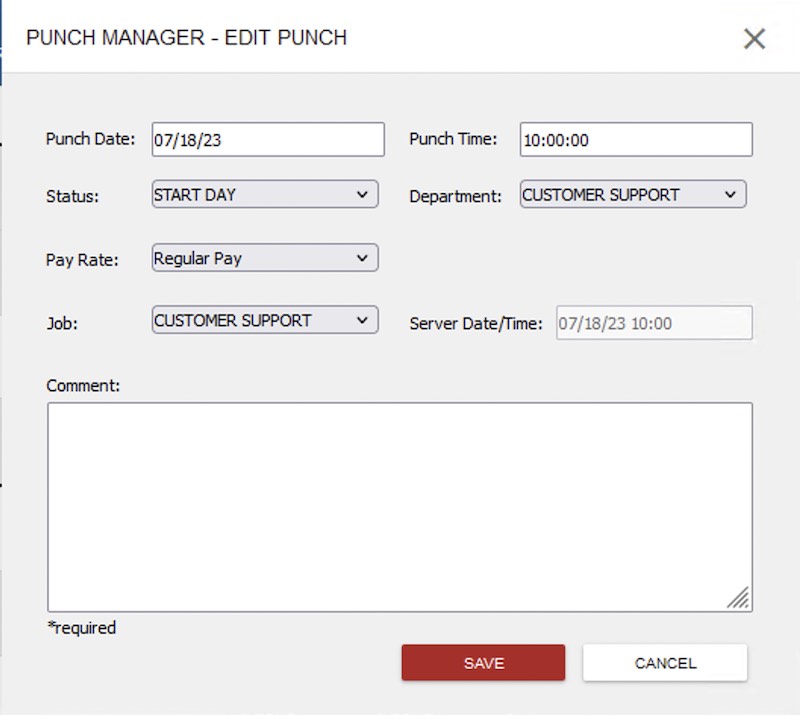
In order for the system to accept your punch, it is necessary to include a note along with it. This precautionary measure ensures that in case an employee questions the accuracy of the punch, there will be a documented explanation for adding it at that particular time.
Deleting Punches #
To delete a punch, simply click the Trash Icon in the actions column.
Troubleshooting #
Issue: Punch not appearing in the timeline
- Solution: Check the filter settings and ensure the correct date range is selected
Issue: Unable to edit a punch
- Solution: Verify your user permissions with your system administrator
Issue: GPS location not showing
- Solution: Ensure the employee’s device has location services enabled and check internet connectivity
