

Overview #
The Timesheets page in the mobile app is designed to help employees easily review, approve, or dispute their work hours for each pay period. This feature ensures transparency and accuracy in payroll processing by allowing employees to view detailed records of their work periods, including daily punches and break deductions. The page also provides a straightforward process for approving or disputing timesheets, with built-in notifications to managers for quick resolution of any issues.
Key Features #
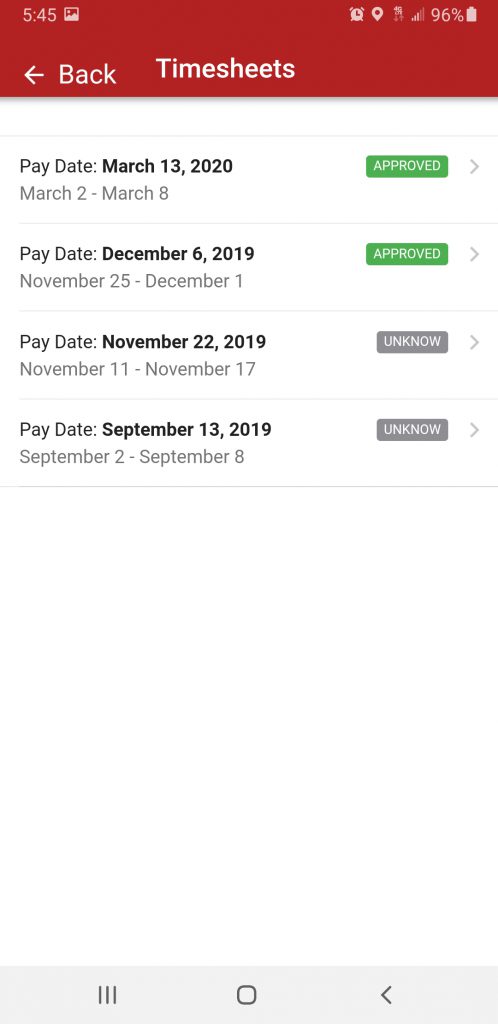
- View Current and Past Timesheets: Access a list of all your timesheets, organized by pay date and work period.
- Status Icons: Instantly see whether a timesheet has been approved or is pending action.
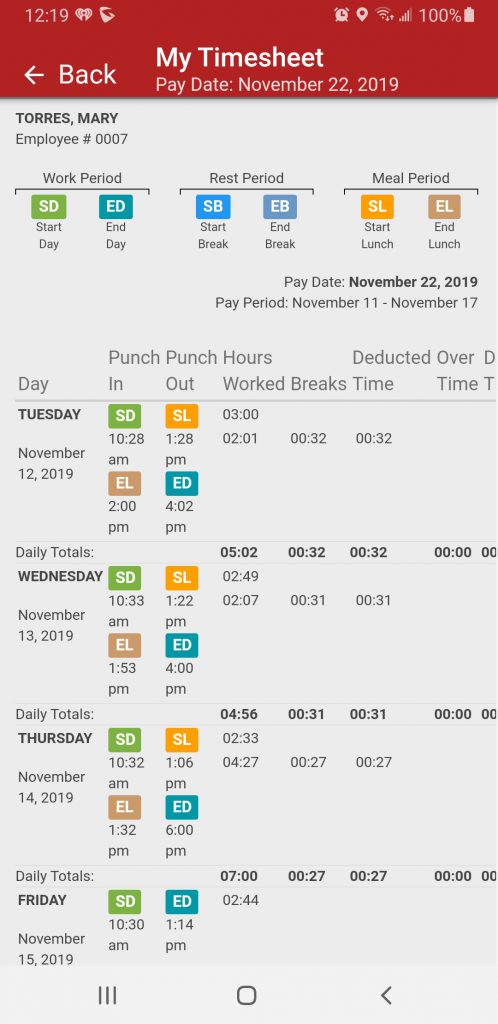
- Detailed Timesheet View: Review daily in/out punches and break deductions for each work period.
- Approval and Dispute Options: Approve your timesheet with a digital signature or dispute any discrepancies directly from the app.
- Manager Notification: Disputes are automatically sent to your manager for prompt attention.
Navigating the Timesheets Page #
Accessing Your Timesheets #
- Open the mobile app and navigate to the Timesheets page from the main menu.
- You will see a list of timesheets, each row displaying:
- Pay Date
- Work Period
- Status Icon (Approved or Pending)
Viewing a Timesheet #
- Tap on any row to open the detailed view for that work period.
- The detailed view displays:
- Each in/out punch for every workday in the period.
- Break deductions for each day.
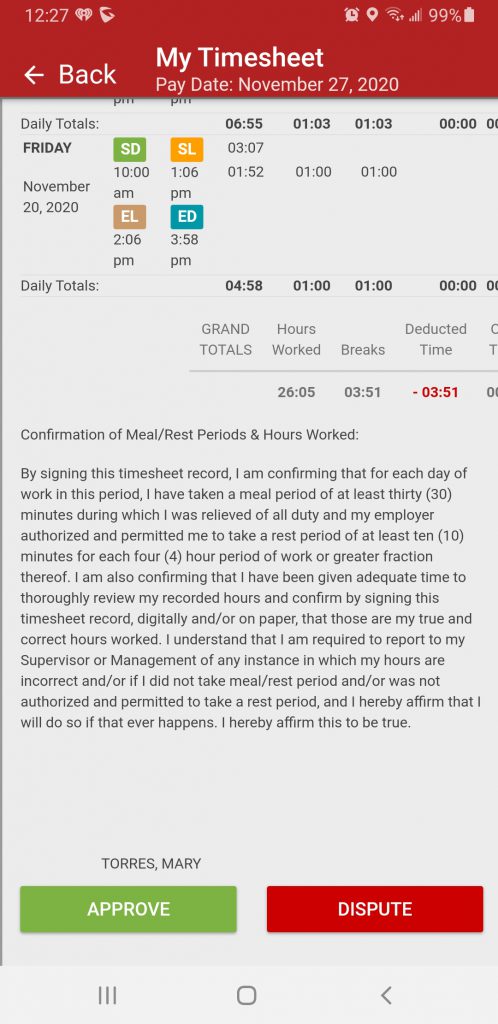
- Scroll to the bottom to find the employer’s legal notice and action options.
Approving or Disputing a Timesheet #
Approving a Timesheet #
- After reviewing your timesheet, scroll to the bottom of the page.
- Tap Approve.
- You will be prompted to sign your name using your finger or a tablet pen.
- Submit your approval. The status icon will update to show the timesheet is approved.
Disputing a Timesheet #
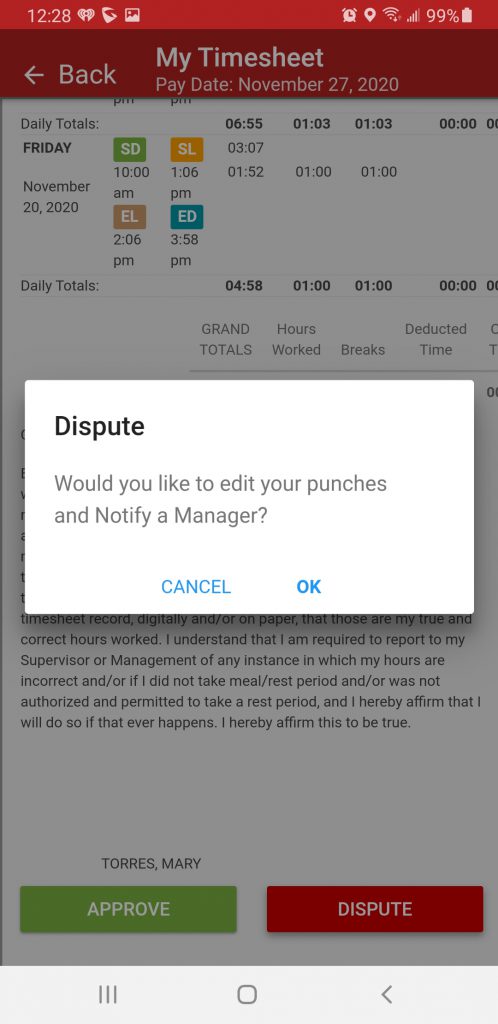
- If you notice any incorrect hours or discrepancies, tap Dispute at the bottom of the timesheet.
- Provide a brief description of the issue.
- Your manager will receive a notification in their Manager portal.
- Wait for your manager to review and resolve the dispute before approving the timesheet.
Note: Disputes must be submitted before the timesheet is finalized for payroll. If you notice an error after submission, contact your manager or payroll processor to correct it for the next pay date.
Frequently Asked Questions (FAQs) #
Q: What does the status icon mean?
A: The status icon indicates whether you have approved your timesheet or if it is still pending your action.
Q: Can I edit my timesheet directly?
A: No, you cannot edit your timesheet directly. If you find an error, use the Dispute option to notify your manager, or navigate to the Punch Management page to edit a specific punch.
Q: What if I accidentally approve a timesheet with errors?
A: Contact your manager or payroll processor as soon as possible. If the timesheets have not yet been processed for payroll, a Manager may reset the approval so you can repeat the process again after making corrections.
Troubleshooting #
I Can’t See My Latest Timesheet #
- Ensure you are connected to the internet.
- Pull down on the Timesheets page to refresh the list.
- If the issue persists, log out and log back into the app.
The App Won’t Let Me Approve or Dispute #
- Make sure you have scrolled to the bottom of the timesheet to see the action buttons.
- Check if the timesheet has already been submitted for payroll; if so, you cannot make changes.
- Restart the app and try again.
My Signature Isn’t Registering #
- Ensure your device’s touchscreen is clean and responsive.
- Try using a different finger or a stylus.
- Restart the app if the issue continues.
I Submitted a Dispute but Haven’t Heard Back #
- Allow your manager some time to review your dispute.
- If you do not receive a response within a reasonable timeframe, follow up with your manager directly.
