

Overview #
We understand that questions or issues may arise as you use ProClock, and our dedicated U.S.-based support team is here to help. Whether you need a quick answer or step-by-step guidance, we are committed to providing prompt, personalized assistance.
When to Submit a Support Ticket #
You should submit a support ticket if you:
- Encounter technical issues (e.g., timesheet calculation errors, login problems)
- Have questions about features or settings
- Need help with account setup or configuration
- Require assistance with employee management or reporting
Most questions can be resolved quickly via text, but we are also happy to schedule a call for more complex issues.
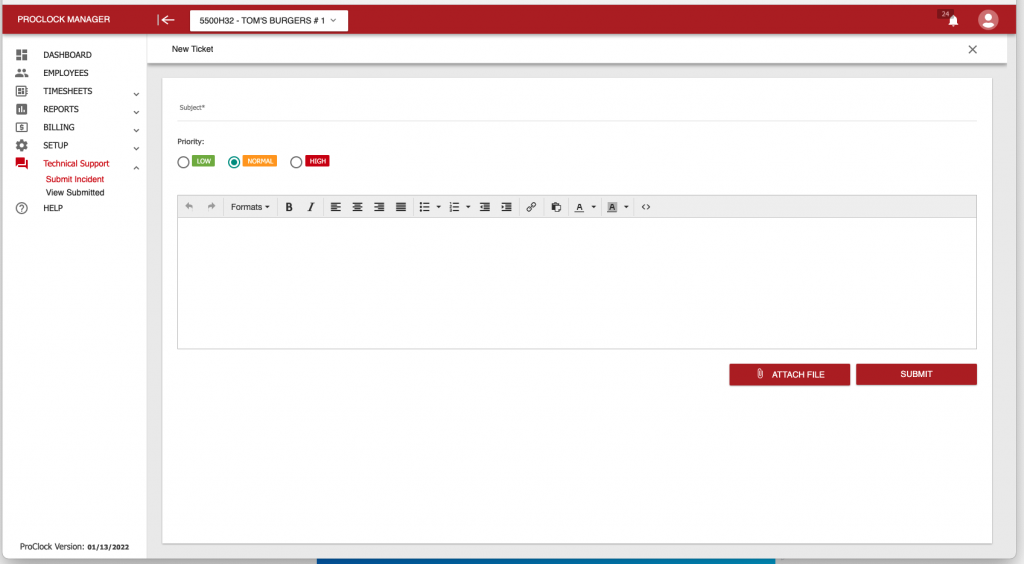
How to Submit a Support Ticket via ProClock Manager Website #
- Log in to your ProClock Manager website account.
- In the main navigation menu, go to Support.
- Click on Create A Ticket.
- Fill out the ticket form with the following details:
- Subject: Briefly describe your issue or question.
- Description: Provide a detailed explanation of the problem or inquiry.
- Relevant Details: Include specific information such as:
- Employee name and 4-digit employee number (if applicable)
- Exact date and time of the issue
- Screenshots or error messages (if available)
- Click Submit to send your ticket to our support team.
You will receive a confirmation email, and our team will respond as soon as possible.
Alternative: Submitting a Ticket via Email #
If you are unable to access the ProClock Manager website, you can submit a support ticket by emailing support@proclock.com.
To ensure prompt and accurate assistance:
- Subject Line: Include your Company ID and Company Name.
- Email Body: Describe your issue in detail, including any relevant employee information, dates, and times.
- Sender Email: Use the email address associated with your ProClock account.
Tips for Faster Resolution #
To help us resolve your issue efficiently, please:
- Provide as much detail as possible about the problem.
- Include relevant employee information (name, 4-digit number), dates, and times.
- Attach screenshots or error messages if available.
- Use your registered email address for all correspondence.
Troubleshooting: Common Issues with Ticket Submission #
Issue: Cannot access the ProClock Manager website
Solution:
- Check your internet connection.
- Try accessing the site from a different browser or device.
- If the issue persists, submit your ticket via email to support@proclock.com.
Issue: Did not receive confirmation after submitting a ticket
Solution:
- Check your spam or junk email folder.
- Ensure you used the correct email address.
- If you still do not receive confirmation, contact support via email.
Issue: Unsure what information to include in the ticket
Solution:
- Refer to the “Tips for Faster Resolution” section above.
- The more specific your details, the quicker we can assist you.
Frequently Asked Questions (FAQs) #
Q: How long does it take to receive a response?
A: Our support team strives to respond to all tickets within one business day.
Q: Can I request a phone call for support?
A: Yes! If you prefer a phone call, mention this in your ticket and provide your contact number and preferred call times.
Q: What if I need help setting up my ProClock account?
A: We offer personalized assistance for account setup. Submit a ticket or email us, and our team will guide you through the process.
Q: Is my data secure when I submit a ticket?
A: Yes, all information you provide is handled securely and in accordance with our privacy policy.
