

Overview #
The Employee Settings section provides users with the ability to update personal information, change passwords, manage diagnostic data sharing, and view device information. This guide explains each feature in detail, addresses common user questions, and provides troubleshooting steps to ensure a smooth user experience.
Key Features #
1. My Account #
Purpose: Allows users to view and edit their personal information, including name, address, phone number, and email address.
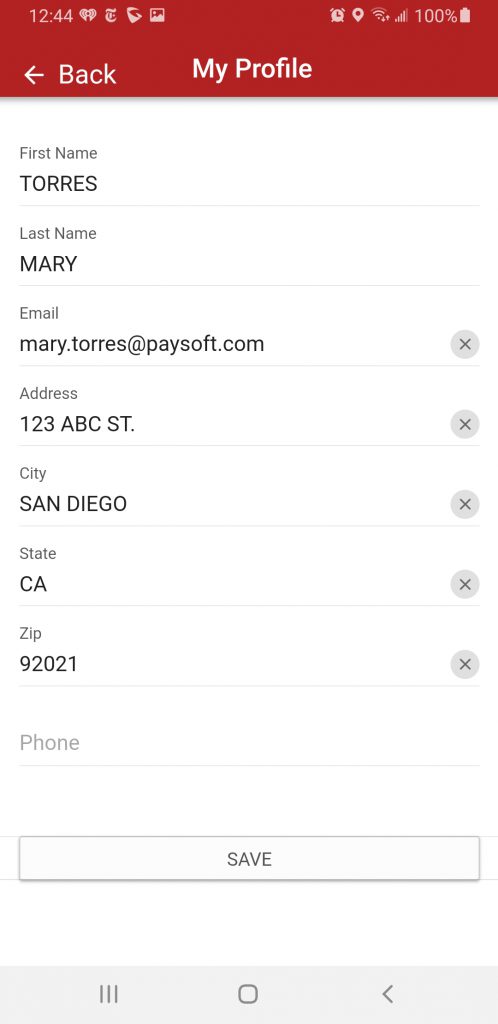
How to Use:
- Navigate to Settings > My Account.
- Update your personal details as needed.
- Tap Save to apply changes.
Common Questions:
- Q: What information can I update?
A: You can update your name, address, phone number, and email address. - Q: Will my changes be saved automatically?
A: No, you must tap Save to confirm and apply your changes.
2. Change Password #
Purpose: Enables users to securely change their account password.
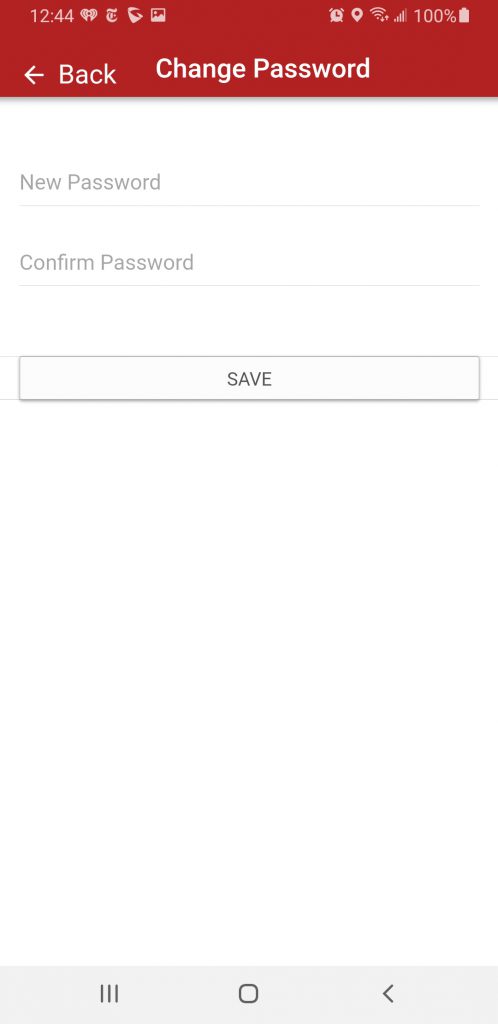
How to Use:
- Go to Settings > Change Password.
- Enter your current password.
- Enter your new password and confirm it.
- Tap Save to update your password.
Common Questions:
- Q: What if I forget my current password?
A: Use the “Forgot Password” option on the login screen to reset your password.
3. Diagnostic & Usage #
Purpose: Allows users to control whether diagnostic and usage data is shared with ProClock for app improvement purposes.
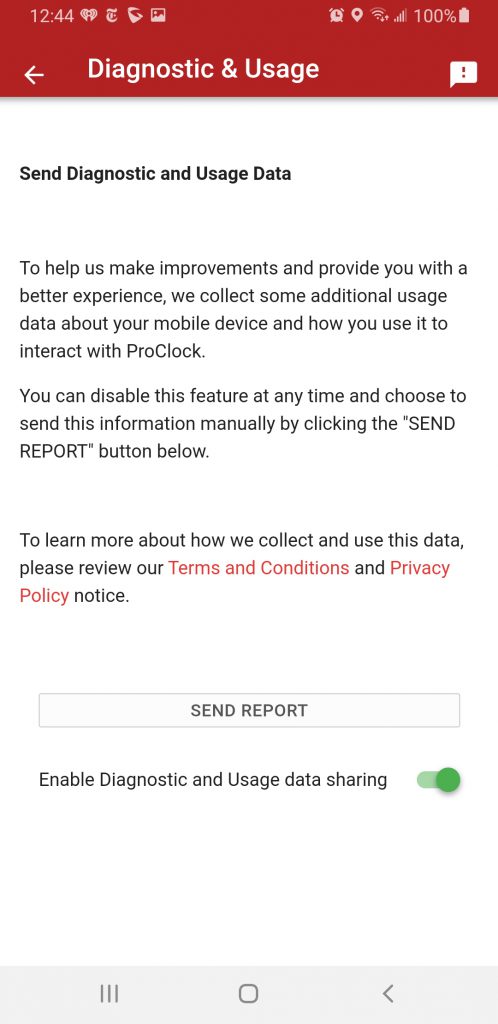
How to Use:
- Go to Settings > Diagnostic & Usage.
- Scroll to the bottom of the screen.
- Toggle the switch next to Enable Diagnostic and Usage data sharing to enable or disable data sharing.
Additional Information:
- For details on data privacy, refer to the Terms and Conditions and Privacy Policy links at the bottom of the screen.
Common Questions:
- Q: What data is shared if I enable this feature?
A: Only diagnostic and usage data to help improve app performance; no personal information is shared. - Q: Can I change this setting at any time?
A: Yes, you can enable or disable data sharing whenever you wish.
4. About ProClock #
Purpose: Displays information about the device and app version.
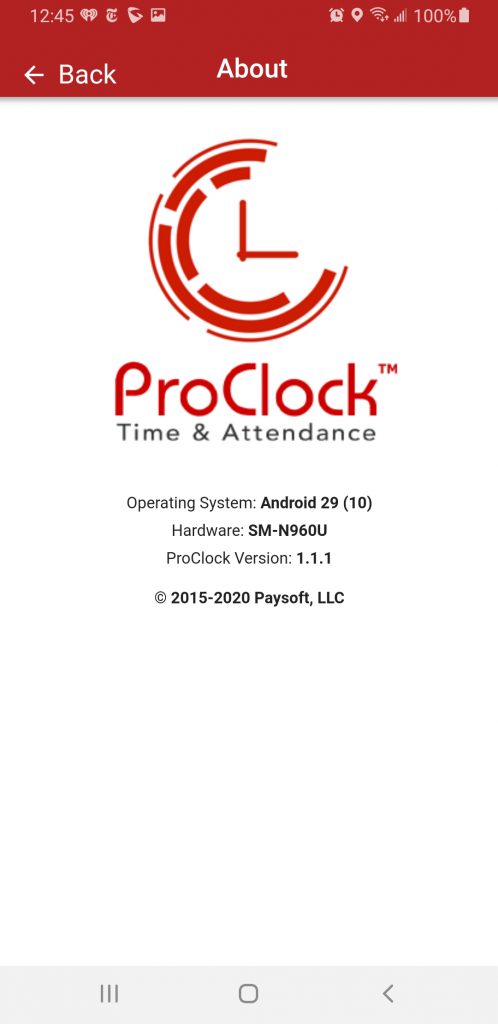
How to Use:
- Go to Settings > About ProClock.
- View details such as:
- Operating System
- Hardware information
- ProClock app version
Common Questions:
- Q: Why do I need this information?
A: This information is useful for troubleshooting and when contacting support.
Troubleshooting #
Issue: Unable to Save Changes in My Account #
Steps to Resolve:
- Ensure all required fields are filled out.
- Check your internet connection.
- Restart the app and try again.
- If the issue persists, log out and log back in.
Issue: Password Change Not Working #
Steps to Resolve:
- Confirm your current password is entered correctly.
- Ensure your new password meets the security requirements.
- If you forgot your current password, use the “Forgot Password” option on the login screen.
